![[SkeyCalc logo]](images/Agent200.gif)

SkeyCalc 3.0
by Colin Henein
An RFC-2289 compliant OTP response generator (S/Key Calculator).
Designed for Mac OS X. Keychain-compliant.
Still available for OPENSTEP and NEXTSTEP.
Fully compatible with Mac OS X 10.6 (Snow Leopard)
|
| |
SkeyCalc 3.0
An RFC-2289 compliant OTP response generator (S/Key Calculator). |
|
This app is free. Like it a lot? 
|
SkeyCalc Manual1. IntroductionWelcome to SkeyCalc version 3. The version 2 and 3 releases of SkeyCalc have been completely rewritten for native compatibility with MacOS X. SkeyCalc has been around since April 1997, when it was originally released as an application for NEXTSTEP 3.3. As mentioned throughout the application, SkeyCalc is Postcard-Ware. This means that instead of paying for SkeyCalc, I only ask that you mail me a postcard! (Pretty easy, eh?) See the About SkeyCalc panel in the application for my address. SkeyCalc is not an arithmetic calculator like your pocket calculator. Instead, SkeyCalc computes One-Time Passwords for use in logging in (or otherwise authenticating to) servers which implement S/Key or OTP access control. If you understand all this, then you may wish to skip over the next section which simply explains about how this system works, and why you'd want to use it. This document contains the following sections:
2. About OTP systems (S/Key systems)In today's internet world, security and authentication are important considerations. Servers want to know that a user requesting login is a valid user, not a malicious one who is pretending to be someone else. Traditionally this authentication function has been performed by having the user identify themselves (by supplying a username) and then typing a password: a piece of information supposedly known only by the user. One problem with this traditional authentication mechanism is that a malicious user on the internet can arrange to eavesdrop on the authentication. (Although the details are complex, you can think of this as the internet equivalent of tapping a telephone line.) By eavesdropping, the attacker can record both the username and password, as transmitted by the user across the network. At their convenience, the attacker can then use this stolen copy of the username and password to authenticate themselves to the server, effectively stealing the identity of the original user. The OTP system was developed as an alternative to this traditional method of authenticating users. (OTP stands for one-time password and was originally called S/Key.) With an OTP system, the password transmitted across the internet is used only once. An eavesdropping attacker can read this password as it goes by on the internet, but the saved copy of this password is useless to them: it has already been used once, and so is no longer valid. The way the system works is as follows: When the user connects to the server, and identifies themselves (generally by supplying a username) the server responds with an OTP challenge. In order to respond to this challenge with a one-time password, the user launches a program on their local computer called an OTP response generator, or sometimes an S/Key calculator. (This program, SkeyCalc, is an OTP response generator.) The OTP response generator combines the challenge from the server, with the user's secret password. Since the challenge from the server is different every time login is requested, the combination of the challenge and password will result in a unique OTP response. This response is the one-time password. The user then provides the one-time password to the server, which can then grant authentication, and allow the user to log in. Since the user's password is only typed into the OTP response generator, and since that OTP response generator is on the local machine (not across the internet), the eavesdropper cannot see the user's secret password. Only the one-time password can be eavesdropped upon, and that password is useless as soon as it is accepted by the remote server. So, in summary, the process of OTP login to a remote server is:
3. Installing SkeyCalcInstalling SkeyCalc is simple.
4. Using SkeyCalc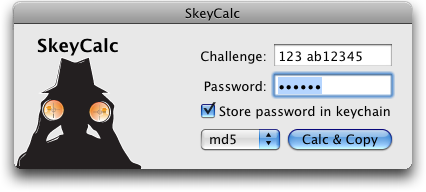
Using SkeyCalc is simple. 4.1 The basicsWhen you receive an OTP challenge, select it with your mouse. It is not necessary to be too precise, SkeyCalc will function even if some other text is selected too... just make sure the whole challenge is selected. Select Skey Response from the Services menu. You will find the Services menu in the current application's application menu (the boldface one, just to the right of the Apple menu in the menu bar.) Beginning with Mac OS X 10.6 you can also find the Skey response option in the context menu by right-clicking (or control-clicking) your selected challenge. When you select Skey Response, the SkeyCalc application will be launched. It will show the challenge in its interface, and the cursor will be positioned for you to type your password. Simply type your password, then click the Calc & Copy button, or press ENTER or RETURN on the keyboard. SkeyCalc will compute the OTP response, and copy it onto the pasteboard. Then SkeyCalc will quit. Your original application should become active again. Now, simply select Paste from the Edit menu, and the response will be sent to your server. (You may need to press ENTER to actually send the text.) Important Tip: if SkeyCalc seems to be selecting incorrect text as the challenge, see the Use Better Matching preference in section 5, below. Here is a quick summary of how to use SkeyCalc:
4.2 Using the KeychainSkeyCalc now supports the Mac OS keychain, which can remember your passwords for you. You may wish to consider operating some of the keychain security controls such as using a different password for your keychain, or causing it to lock automatically on system sleep or after inactivity. Use Apple's Keychain Access application in /Application/Utilities to make these changes. If you switch on the store password in keychain option on the main window, then SkeyCalc will store the password associated with the current challenge for later use. In the future SkeyCalc will not prompt for your password for this server. If you use the services menu then the main window will not need to display at all. If you launch SkeyCalc manually then the password will be prefilled for you when the focus leaves the challenge field. (Press tab after typing the challenge.) If you store a password but then decide you no longer wish to store it in the keychain, then launch SkeyCalc from your Applications folder and select Keychain Items from the SkeyCalc menu. You can view and delete the stored keys here. Depending on your preferences, storing a password in the keychain may make it possible for SkeyCalc to operate, calculate a response, copy it to the clipboard and quit — all without opening a single window. This might cause confusion. In this case, to provide some confirmation that SkeyCalc has computed a response, an icon will briefly flash in the center of the screen. 4.3 Details
5. SkeyCalc preferencesNew in this version of SkeyCalc, there are 3 preferences. They can be set on the Preferences panel, which can be opened from the SkeyCalc menu (the Edit menu, on MacOS X Server). It is recommended that you switch on the 'Use better matching' preference if possible. 5.1 Prefer challenge's algorithmSkeyCalc auto-detects the encryption algorithm requested by standards-conforming OTP challenges. It also contains a button that lets you manually set the encryption algorithm to be used. If there is a conflict between what the user requests and what the challenge requests, this preference is used to decide what will happen. If set (the default) the challenge's algorithm will be used. If off, the user's preference will be used. 5.2 Use better matchingMost users should be able to switch this preference on, and should do so. If you turn it on and things stop working, then switch it back off again. This preference is not selected by default because it will make a minority of users unable to use SkeyCalc, as explained in the next paragraph: When launched as a service, SkeyCalc searches through the selected text looking for an OTP challenge. Most challenges resemble: 111 fu2234. Note the letters (fu) in the second part of the challenge. In the OTP standard, these letters are technically optional. Since the letters are often present, however, you can turn this preference on to allow SkeyCalc to make use of them in pinpointing OTP challenges in selected text. In other words, when this preference is set, SkeyCalc requires the letters. This will make SkeyCalc unusable by you if your server doesn't send letters in challenges. When unset, SkeyCalc will allow a challenge consisting exclusively of numbers. The reason to switch this preference on is that SkeyCalc may mistake other pairs of numbers for the challenge, which would not be good. If your challenges have both letters AND numbers (after the otp-xxx part, if any) then switch this preference on. 5.3 Show result as well as copyVersions of SkeyCalc before 3.0 did not provide any user feedback after the calculation was done. This isn't very user friendly, especially the first few times you run it. Beginning with version 3, SkeyCalc displays the calculation onscreen as well as copying it. To revert to the original behaviour, turn this preference off (or deselect the checkbox labelled show this window after calculating responses option that appears on the result window). 6. Planned enhancements and feature requestsLike everyone else in this world I have a tight schedule. I am pleased to consider feature enhancements and requests. email me at: 7. Copyright and licensing informationSkeyCalc v3.0 is copyrighted software. ©2009 by Colin Henein. All rights are reserved by Colin Henein. You are using this program under the terms of a license. The full terms and conditions of the license, and complete copyright information is available in the About SkeyCalc panel inside the program. This panel is viewable from the SkeyCalc menu while SkeyCalc is running. Accessed times since March 26, 2001 Last Modified: September 15, 2009 
|